

Design and Slides are in beta. They’re off by default.
Turn on Design and Slides
In the Enterprise Admin Console
In the Enterprise Admin Console:- Go to Organization settings > Desktop 3P > Capabilities.
- Turn on the Artifacts switch. The Design and Slides switches appear under it.
- Turn on the Design switch, the Slides switch, or both.
- Click Save changes.
In MDM or a bootstrap server
Set these keys in your MDM configuration or bootstrap response. To turn on only one of Design and Slides, leave out the other’s key.artifactsEnabled is true. artifactsEnabled controls only Design and Slides artifacts, so live artifacts (interactive pages) don’t depend on it.
Use Design and Slides
Design and Slides work in Unified Claude, which is on by default. All of a user’s designs and decks are listed under Artifacts in the sidebar. Claude can’t make or change designs and decks in Code sessions or in runs of scheduled tasks. These restrictions apply to Design and Slides in Claude Desktop on 3P:- Sharing with other users: not available.
- Comments: not available. Users can ask Claude for a change or make the edit themselves.
- Export: designs export to HTML, PDF, and PNG. Decks export to PowerPoint, PDF, and HTML. Users can’t export a design to PowerPoint, or send designs and decks to Google Slides, other tools, or Claude Code.
- Connectors: designs and decks can’t use connectors.
Design systems
A design system gives Claude your brand: your colors, type, logos, and rules, in a folder of plain files. Claude uses it when it creates designs and slide decks. Design systems require Claude Desktop 5.11492.0 or later. Artifacts must be on, and so must Design, Slides, or both. In versions before 6.6395.0, Design must be on.
Users can have both kinds and choose which one Claude uses.
Create a design system
Write the files yourself, or have Claude draft them with a skill:- Put your brand’s logos, fonts, guidelines, and any decks or code that show the brand well in one folder.
- Start a conversation from the home screen, add that folder with Project or folder, type
/, choose draft-design-system, and describe what you want. For example: “Draft a design system for Acme from the files in this folder.” - Claude writes the design system as a new folder, and tells you what it assumed and what’s missing.
To create a design system by hand instead of with the skill, write a
README.md, a tokens.json, and a tokens.css. Below is an example tokens.json. Keep its structure, use each name only once, and write colors as hex, rgb(), hsl(), or oklch().
Example tokens.json
Example tokens.json
tokens.json
tokens.css with the same values.
Example tokens.css
Example tokens.css
tokens.css
tokens.css when you add a folder in Settings. Claude Desktop generates it from tokens.json. It also replaces any tokens.css whose first comment says it was generated from tokens.json. Plugins must always include tokens.css.
Add a design system on one computer
- Go to Settings > Design systems and click New design system.
- Choose the folder, with
README.mdat its top level, and confirm. The folder’s name becomes the design system’s title. - Open the ⋯ menu on its row to make it the default, update it, or remove it.
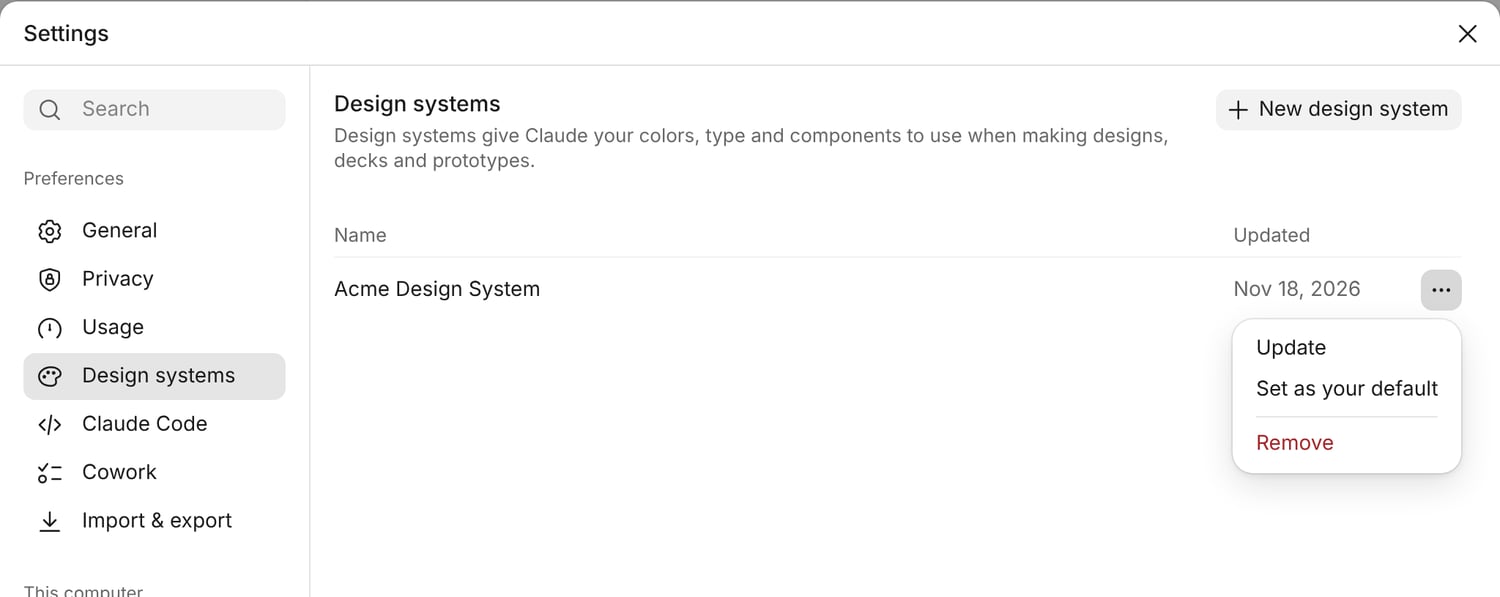
A design system added from a folder, with its menu open.
allowedWorkspaceFolders, the design system folder must be inside one of the folders you allow.
Package a design system as a plugin
To share a design system with your organization, put it in a plugin marketplace, such as a Git repository. Make one plugin for each design system. Inside the plugin, name the folder exactlydesign-system:
Example repository
Example repository
.claude-plugin/marketplace.json:
Example marketplace.json
Example marketplace.json
.claude-plugin/marketplace.json
acme-design-system/.claude-plugin/plugin.json:
Example plugin.json
Example plugin.json
acme-design-system/.claude-plugin/plugin.json
If you don’t use Git, a marketplace can also be a file on a web server. For design systems, serve it from your inference gateway or bootstrap server. In Claude Desktop 6.6395.0 or later, you can use another web server if you set
manifestSha256 in the marketplace’s entry and sha256 for the plugin’s archive in marketplace.json.
Choose which plugins are design systems
Write each design system asplugin@marketplace, using both names from marketplace.json. The first one in the list is your organization’s default. In the marketplace entry, set ref to a full 40-character commit, not a branch or tag. For the other fields, see Plugin marketplaces.
In the Enterprise Admin Console:
- Go to Organization settings > Desktop 3P > Plugins and add the marketplace. Enter the commit in Ref.
- Go to Organization settings > Desktop 3P > Capabilities and list the plugins in the Design systems row.
- Click Save changes.
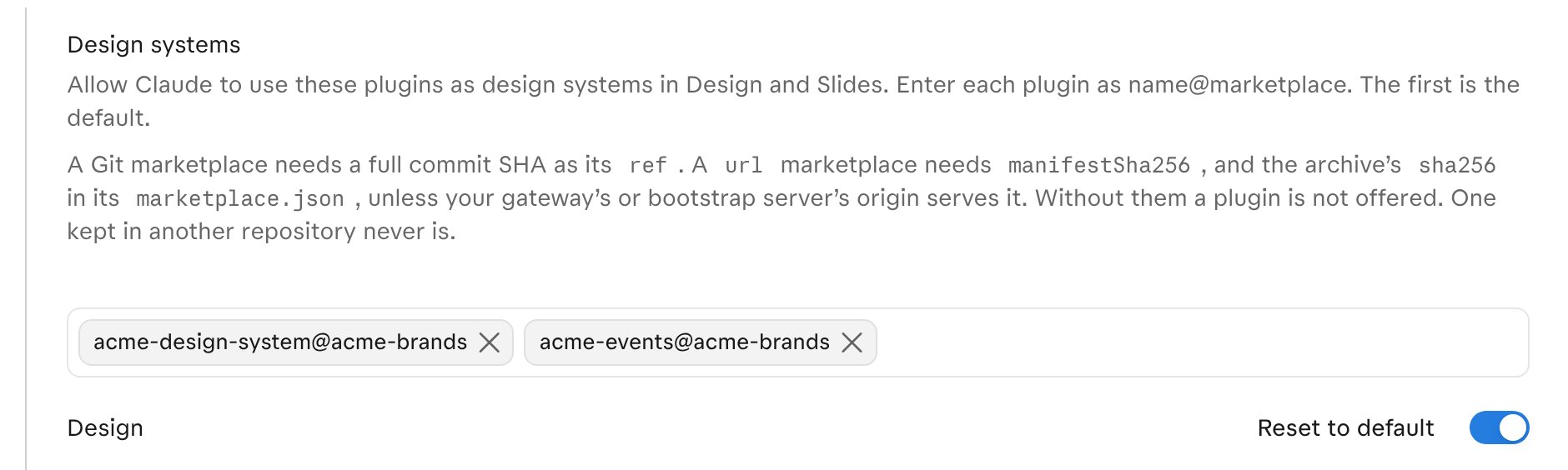
The Design systems row on the console's Capabilities page.
allowedPluginMarketplaces and artifactsDesignSystemPlugins. In an MDM profile, write each list as a string, as shown in Configuration format.
Example configuration
Example configuration
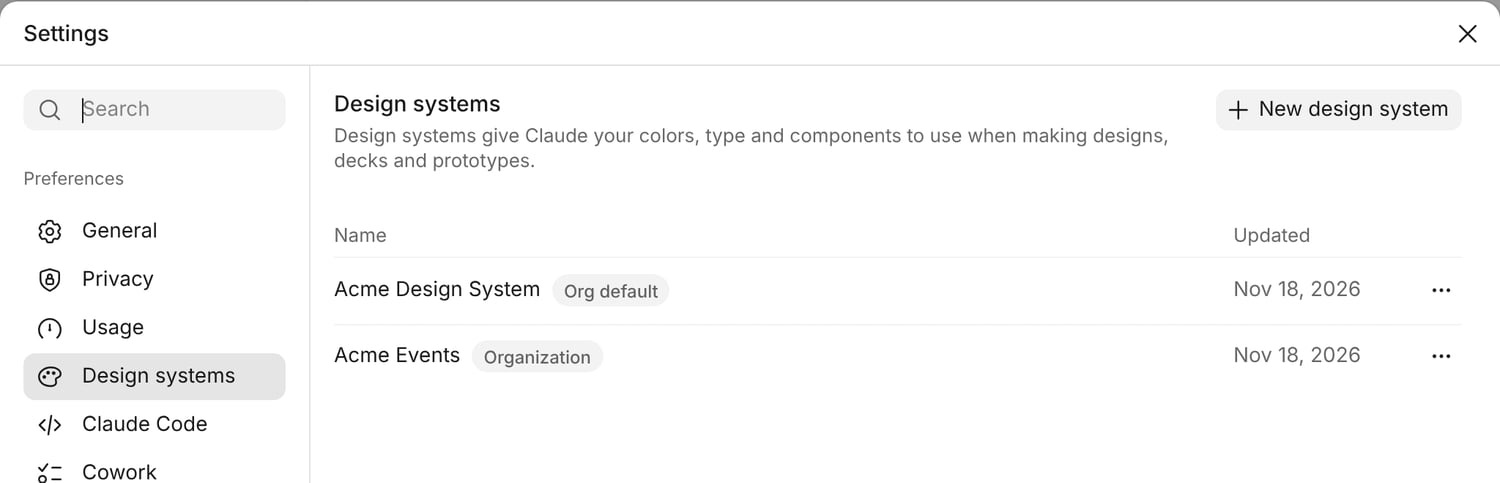
What users see in Settings.
If a design system doesn’t appear
Openmain.log in the app’s logs folder and look for the plugin’s name and one of these words:
If the design system appears but Claude can’t read it, check that its folder is named
design-system.