

- Web Search runs a search-engine query and returns ranked results.
- Web Fetch retrieves the contents of a specific URL.
Web Search
Web Search is a server-side tool executed by your inference provider, not by the desktop app. Availability depends on which provider you’ve configured:
On any provider you can configure the built-in web search to choose the search backend yourself. Once it is configured, the app stops offering provider-side search and routes the model’s search calls to the built-in server. If you want no web search at all, add
"WebSearch" to disabledBuiltinTools instead. That entry also blocks the built-in web search tool, so do not combine the two.
The Claude apps gateway passes the web_search tool through to its upstream provider, so Web Search works in Claude Desktop behind that gateway when the upstream is Google Cloud’s Agent Platform, Microsoft Foundry, or the Anthropic API. The exception is a gateway policy that holds settings under code, which turns Web Search off in Cowork, Chat, and Code. Claude Desktop can’t see which upstream the gateway routes to, so if the gateway routes any model to Amazon Bedrock, configure the built-in web search, which replaces provider-side search on every route. To turn web search off instead, add "WebSearch" to disabledBuiltinTools in the gateway’s Claude Desktop overlay.
Provider-side search runs on the provider’s infrastructure, so queries and results travel over the same path as model inference and are subject to your provider’s data-handling terms. It needs no additional firewall rules beyond the inference endpoint itself.
coworkEgressAllowedHosts governs client-side egress (Web Fetch and in-sandbox shell network activity). Provider-side Web Search executes at your inference provider, so the allowlist does not apply to it. The built-in websearch server under Web search options runs in the desktop app itself, outside the sandbox, and coworkEgressAllowedHosts does not apply to it either. Its search provider’s host (api.search.brave.com, api.tavily.com, api.exa.ai, or the host of your customUrl) does need to be reachable through your perimeter firewall and proxy, and the Egress section of the in-app configuration window lists that host. To let the agent fetch pages it finds via search, add the relevant hosts to coworkEgressAllowedHosts or set it to ["*"].Web search options
Provider-native search
Google Cloud’s Agent Platform grounding and Microsoft Foundry both execute search inside the model call. There’s nothing to configure in Claude Desktop. Any setup happens on the cloud provider’s side.Built-in web search
Add the bundledwebsearch server to managedMcpServers. Search runs in the desktop app itself, so it works on every inference provider, including Amazon Bedrock.
You can add it from the in-app configuration window: under Connectors, add a Web search server, choose the search provider, and supply the vendor key as a header or through a headers helper script.
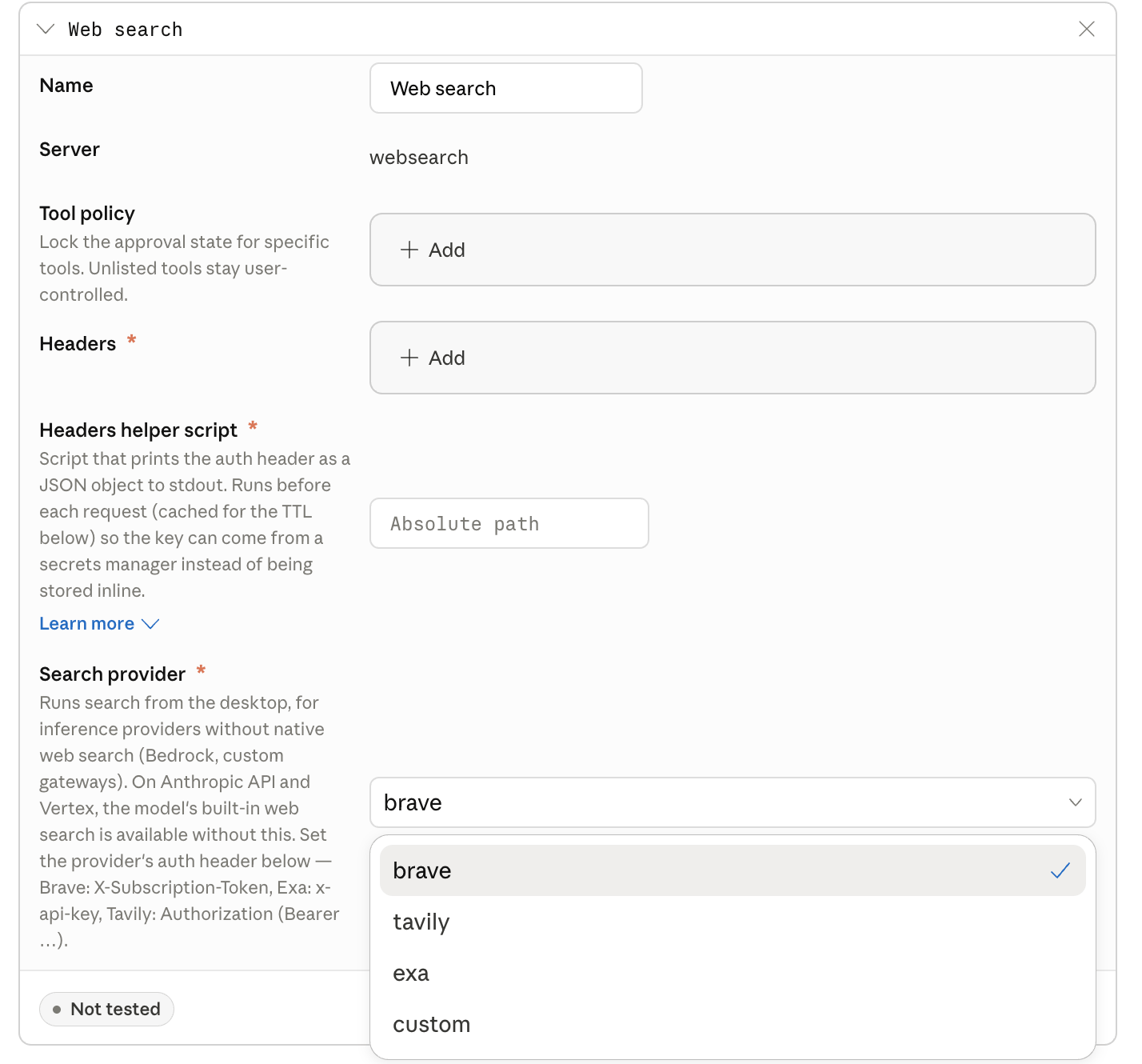
The Web search server in the Connectors section of the in-app configuration window, with the search provider menu open.
provider to a hosted search vendor (brave, tavily, or exa) for the lowest setup, or to custom with customUrl to point at a search server you run.
Hosted vendor:
A hosted-vendor key configured in
headers or returned by headersHelper is the same key on every device, and a local user can extract it. The exposure is limited to billing abuse on that key (it grants no data access). For regulated environments, set spend caps and rotate the key on a schedule, or have headersHelper fetch a per-user key: Tavily and Exa support per-user or per-team keys; see their key-management docs.toolPolicy to "allow" so users aren’t prompted to approve each search in Cowork sessions and Chat conversations. For Code sessions, see Tool permissions for managed MCP servers. headersHelper is an executable that prints the auth header as a JSON object to stdout; it follows the same execution model as inferenceCredentialHelper (exit 0, stdout read as JSON), but the output here is a flat header map, not the {token, headers} shape inferenceCredentialHelper uses.
You can use a static
headers object instead if you don’t need a secrets manager.
With provider: "custom", Claude Desktop sends each search as an HTTP POST to customUrl exactly as written (nothing is substituted into the URL), with Content-Type: application/json, any headers from headers and headersHelper, and the body {"q": "<search terms>"}. Your server must answer within 15 seconds with a 2xx status and a JSON body of the form {"results": [{"title": "...", "url": "...", "snippet": "..."}]}. Results without a url are dropped, at most 10 are used, and each snippet is truncated to 600 characters.
Gateway-side search
If your inference gateway can execute search itself, the search key stays server-side and never reaches end-user devices. For LiteLLM proxy server, enablewebsearch_interception in callbacks and configure a search backend in the proxy. The gateway intercepts the model’s web_search_20250305 request, runs the search, and returns results to Claude Desktop.
If your gateway translates between API formats (for example, Anthropic to OpenAI chat completions), note that web_search_20250305 is an Anthropic server tool with no chat-completions equivalent. The translation layer needs to handle it explicitly: run the search when the model requests it and emit server_tool_use and web_search_tool_result blocks in the response. Ask your account team for a reference implementation.
Remote search MCP
Connect a search MCP server as a remotemanagedMcpServers entry: either one you host, or Amazon Bedrock AgentCore Gateway with the Web Search target enabled (configure AgentCore for JWT authentication through your identity provider). Whether this stays inside your boundary depends on where the server is hosted; AgentCore is available in commercial AWS regions.
Data handling
Search queries go to whichever backend you configure. In every option, the query is also visible to your inference provider as part of the conversation, because the model emits the search call. For Google Cloud’s Agent Platform and Amazon Bedrock, Anthropic does not receive search queries in any of these options. For Microsoft Foundry, the Anthropic API, or a gateway, the query is part of the conversation content covered under Data handling by provider. To keep the search backend itself inside your network, useprovider: "custom" (or a self-hosted MCP) pointed at a search index that runs inside your boundary.
For audit, each search the model runs is recorded in the Cowork or Code session telemetry sent to your OTLP collector as a tool_result event, whichever option you choose (a WebSearch event for provider-side or gateway-side search, an MCP tool event for the built-in or a remote search server). Add toolDetails to otlpContentCapture to include the tool input, which carries the query text (long values are truncated). The built-in websearch server also emits a builtin_websearch_call event on the desktop application’s own stream with the search provider, query length, result count, duration, and status, never the query text. The app exports that event only when otlpDesktopLogLevel is info or debug, not at the default error level.
Web Fetch
In Cowork and Chat, Web Fetch runs in the Claude Desktop main process on the user’s device. The model supplies only the target URL; it cannot set headers, a request body, or credentials. Each request carries the app’s own browser-styleUser-Agent header, which includes Claude/<app version>. The app checks every fetch, including redirect targets, against coworkEgressAllowedHosts before it sends the request. For Code sessions, see How the egress allowlist applies in Code sessions.
Cowork and Chat refuse every fetch while the key is unset or empty. To permit fetches:
Wildcards match one or more leading subdomain labels (
*.example.com matches a.example.com and a.b.example.com, but not example.com). A listed host that many organizations share, such as a cloud provider’s API endpoint, is reachable from the agent’s shell with any account’s credentials. A command can then send data to an account outside your organization.
Your perimeter firewall is a separate, outer layer from
coworkEgressAllowedHosts, so a host allowed by this key still won’t be reachable if your corporate network blocks it. See Telemetry and egress for the distinction.curl or pip install from the agent’s shell), not just the Web Fetch tool. A command-line tool that a plugin adds to the Cowork sandbox can also reach the hosts its plugin declares, whatever the list holds. Claude Desktop’s own connections for inference, sign-in, model discovery, telemetry export, and MCP servers aren’t checked against it and need no entry.
If a shell command or a Claude Code HTTP hook calls your gateway, inference provider, OTLP collector, or api.anthropic.com, add that host. Earlier versions of Claude Desktop added some of these hosts automatically, so when you update, add the ones the agent calls.
In Code sessions, Claude Code’s Web Fetch tool also asks api.anthropic.com whether each domain is on Anthropic’s blocklist before fetching, and refuses the fetch if that lookup cannot complete. If your devices cannot reach api.anthropic.com, or you do not want fetched hostnames sent there, set skipWebFetchPreflight to true. The key requires Claude Desktop 1.37937.0 or later. Cowork sessions do not perform this lookup.
How the egress allowlist applies in Code sessions
In Code sessions, the key reaches Claude Code’s own Web Fetch tool and shell sandbox as managed settings, unless Claude Code managed settings that you deploy separately take precedence:- Web Fetch: each host you list becomes a Claude Code
WebFetchallow rule. The key doesn’t block a fetch to another host. In Auto mode, which new Code sessions start in by default, and in bypass permissions mode, Claude Code doesn’t ask the user before that fetch. For the other modes, see WebFetch tool behavior. - Web Fetch controls: to require approval for every fetch that Claude makes, set
WebFetchto"ask"inbuiltinToolPolicy, which also applies in Cowork and Chat. To remove the tool, see Disabling web tools. - Shell commands: commands that run in Claude Code’s sandbox reach only the hosts you list, and no host while the list is empty. For a key that isn’t set, see Unset allowlist in Code sessions. On Windows, and on Linux without Claude Code’s sandbox dependencies, shell commands run unsandboxed and can reach any host your network allows. To keep Code off such devices, see Disabling Code. For SSH hosts, see Sandbox status on the remote host.
- Hooks, local MCP servers, and mods: hooks that run a command, local (stdio) MCP servers, and Claude Code mods run outside Claude Code’s sandbox and can reach any host your network allows. To limit which of them run, see the warning under Applied as managed policy.
- Preview pane: Claude Desktop applies the list itself, also while the built-in browser is off. A page that a user previews in Code, such as one from a local development server, loads content only from the device and from the hosts you list. To let such pages load scripts, fonts, or data from another host, add it to the list, which also opens that host to the agent’s shell. An unset list, or one that contains
*, limits nothing there. Before Claude Desktop 6.6395.0, the list applied to previewed pages only while the built-in browser was on.
Unset allowlist in Code sessions
The in-app configuration window showscoworkEgressAllowedHosts as Allowed egress hosts, an unset key as Not set, and an empty list ([]) as Allow none. Where Claude Code’s sandbox doesn’t run, such as a Code session on Windows, shell commands run unsandboxed and can reach any host your network allows, whatever the key holds. To keep Code off those devices, see Disabling Code.
When you deliver configuration through the Enterprise Admin Console, a bootstrap server, or a managed source such as an MDM profile, an unset key turns on Claude Code’s sandbox. Where the sandbox runs, shell commands in it reach no host, and the Local sandbox and Strict sandbox mode toggles under Settings > Claude Code are on and locked. To let shell commands reach a host, add it to coworkEgressAllowedHosts in your configuration.
If you set up the device yourself in the in-app configuration window (single-machine setup) and left Allowed egress hosts at Not set, go to Settings > Claude Code and check the Local sandbox toggle:
- The toggle is unlocked: Code sessions follow your own Claude Code settings. While the toggle is off, shell commands run unsandboxed, and the session’s permission mode and permission rules decide whether Claude Code asks you before it runs one. In Auto mode, the default for new Code sessions where the model supports it, a safety classifier decides instead of asking you. To run a local session’s commands in the sandbox, turn on the toggle.
- The toggle is on and locked: something else keeps the sandbox on, for example:
- A managed source on the device: shell commands reach no host
- Block reads outside working directories turned on: shell commands reach no host
- Allowed workspace folders set, with neither of the other two: Claude Desktop doesn’t limit the hosts, and Claude Code’s sandbox decides which ones shell commands reach
- The toggle is missing, or is off and can’t be changed: the sandbox doesn’t run on the device, so shell commands in local sessions run unsandboxed
Disabling web tools
To remove web tools entirely, add them todisabledBuiltinTools:
coworkEgressAllowedHosts empty, commands in the agent’s sandboxed shell reach no host other than those a plugin declares for its command-line tool. In Code sessions where Claude Code’s sandbox doesn’t run, shell commands can reach any host your network allows.
The agent can still read and write local files, run code against them, and call any MCP servers you’ve provisioned. See the Locked down profile.
User settings for web tools
Each user can make Web Search or Web Fetch stricter for themselves than your configuration requires, and can’t make either tool looser. The user goes to Customize > Connectors and sets Web search or Web fetch under Built-in tools, or opens the message box’s + menu and selects Connectors. Each tool’s setting covers the user’s Cowork, Chat, and Code sessions and takes one of these values:- Default: your configuration and the session’s permission mode decide whether Claude asks first
- Always ask: Claude asks the user before each call to the tool, including in Auto mode, which Cowork shows as Automatically approve
- Blocked: new sessions don’t include the tool
WebSearchorWebFetchset to"ask"inbuiltinToolPolicy: the user selects Always ask or Blocked, next to the line Restricted by your adminWebSearchorWebFetchlisted indisabledBuiltinTools: the tool has no row, so the user has nothing to set
disabledBuiltinTools doesn’t list it, and controls that tool. When you configure the built-in web search, that server has a row of its own in both places, and users control search from that row.
A user’s setting is a preference that the user can change back at any time. Blocked removes that tool, and shell commands and browser tools still reach what your configuration allows. To enforce a restriction for everyone, see Disabling web tools.